How to add panels on Kick: About panel size and step-by-step setup (2026)
Adding panels to Kick's About tab: panel image size (320 px wide, 4 MB), panel title, description and link, which panels to have, panel order and design tips.
To add panels on Kick, go to the About tab on your channel page, turn on edit mode, add a panel, upload the panel image (320 px wide, under 4 MB), write the title and description, add a link if needed and save. Repeat for each panel, then drag to reorder.
Kick panel size
| Spec | Value |
|---|---|
| Width | Scaled to 320 px (design at 640 px for sharpness) |
| Height | Free; 100–160 px horizontal buttons are common |
| File | PNG/JPG, under 4 MB |
| Shows on | About tab |
Same logic as Twitch panels; a set made at Twitch's 320×100–160 works on Kick too. For Twitch: Twitch panel design.
Step by step
- Open your own channel page on Kick (
kick.com/yourname). - Switch to the About tab.
- Turn on Edit panels.
- Click
+to add a panel. - Upload the image → title (optional) → description (short, markdown-friendly) → link.
- Save and move on to the next panel.
- Drag panels into order of importance: About and Schedule first, Rules last.
Which panels?
- About — who you are and what you stream, in two sentences.
- Schedule — days and times. This is the most-viewed panel.
- Socials — Instagram, TikTok, YouTube, Discord links.
- Rules — chat rules, short points.
- Donate / Support — link to your tip page.
- Contact / Business — email.
- Gear — a frequent question on gaming channels.
The panel image carries only the title (ABOUT, RULES); details go in the description below it. A paragraph inside the image is hard to read and invisible to search.
Three panel design rules
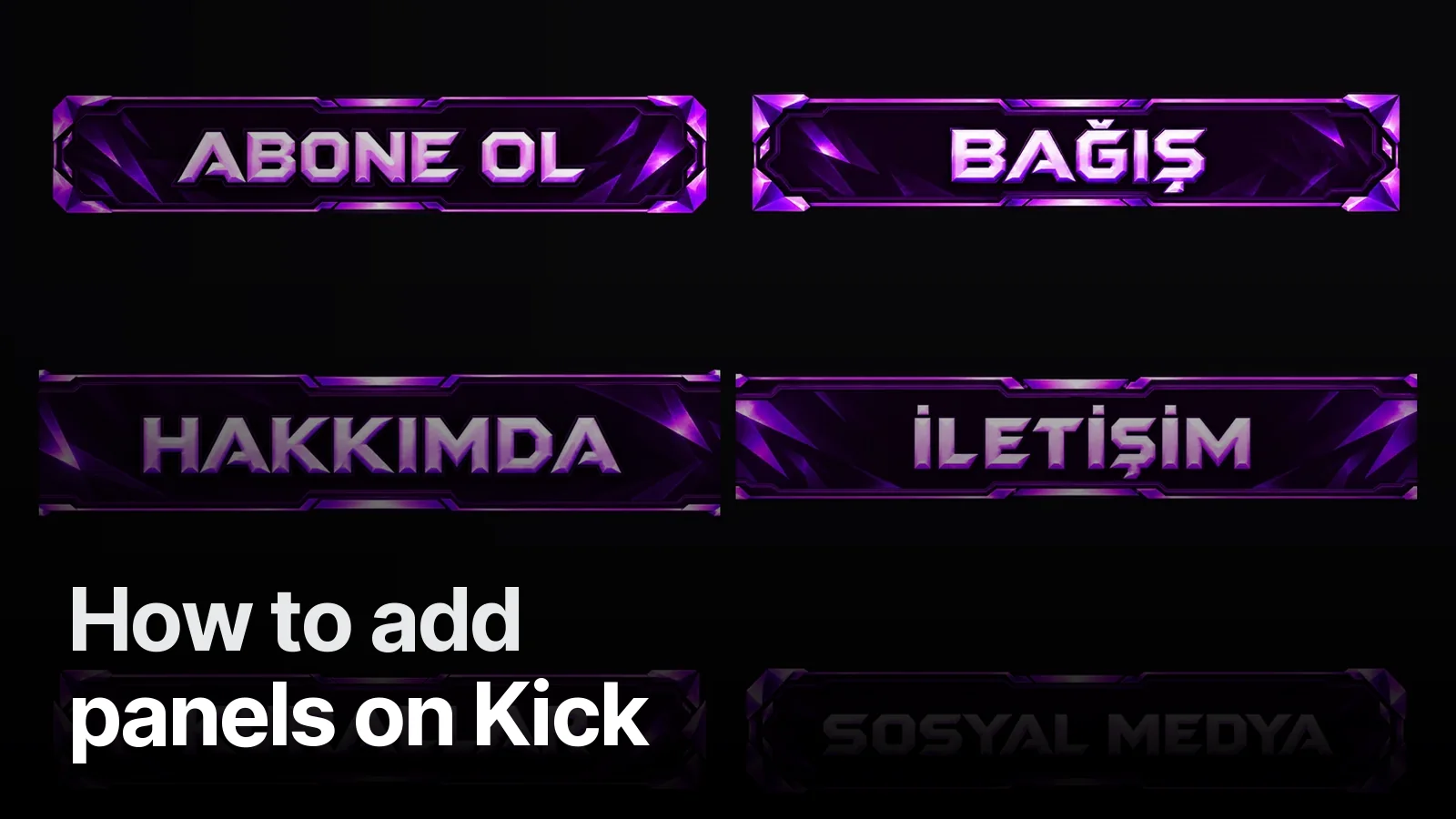
- Same frame, different word: every panel comes from one template and only the title changes. In the Yektaunlu panels the purple crystal frame stays and the word changes.
- Readable type: at 320 px the title should be at least 28–32 px tall, in a bold face.
- Your channel's colours: the same palette as the banner and overlay. In the Vesvese set the panels are rune-carved stone tablets in the same cold grey as the overlay and banner.
For the rest of your channel: how to set up Kick channel branding. A panel set built for your channel comes with every one of our streamer packages.
Frequently asked
1.What size are Kick panels?
Kick scales panel images to 320 pixels wide and keeps the aspect ratio; the file limit is 4 MB. In practice horizontal buttons between 320×100 and 320×160 work well. Designing at double size (640 px) looks sharper on high-density screens.
2.Where do panels show on Kick?
On the About tab of your channel page, under the bio. While you're live, viewers see the panels when they scroll below the player.
3.Which panels should I add?
The basic set: About, Schedule, Socials, Rules, Donate/Support, Contact. Gaming streamers add Gear/PC; if you have a sponsor, a Sponsor panel. Five to eight panels is enough.
4.Can a panel have a link?
Yes. Each panel takes an image, a title, a description and a link. Fill in the link field and the image becomes clickable.