Twitch and Kick panel design: which panels you need, the 320 px rule, icon language
How to design channel panels (About, Rules, Socials, Support, PC): 320-pixel width, the 100 px standard, icon and typography consistency, which panels are essential, Kick vs Twitch, and the panel set in Creatune packages.
Panels are the section that explains your channel even when you are offline: who you are, your rules, where to find you, how to support. Viewers look here before they type in chat; sponsors look here first.
Sizes and technical rules
| Twitch | Kick | |
|---|---|---|
| Width | 320 px | 320 px recommended |
| Height | up to 600 px; standard 100 px | free, 100 px recommended |
| File | PNG/JPG, 2.9 MB | PNG/JPG |
| Clickable link | yes (one per panel) | yes |
320 pixels is narrow: text on a panel must be at least 22–24 px or it will not read on a phone. Long text goes into the description field under the panel, not into the image — it is searchable and copyable there.
Which panels?
The five every channel needs:
- About — who you are, what you stream, schedule. 2–3 sentences.
- Rules — short, numbered; humour is fine, clarity is required.
- Socials — Instagram, YouTube, TikTok, X; one clickable panel each, or one panel plus links in the description.
- Support / Donate — tip link, a reason to subscribe; on Twitch the sub panel is automatic.
- Schedule — days and times; not "usually evenings" but "Tue–Thu–Sat 21:00".
As you grow: Gear / PC, Discord, Sponsors, FAQ, Emotes / Badges (show what subscribers get).
Design language
Panels are never seen alone — ten of them stacked. So:
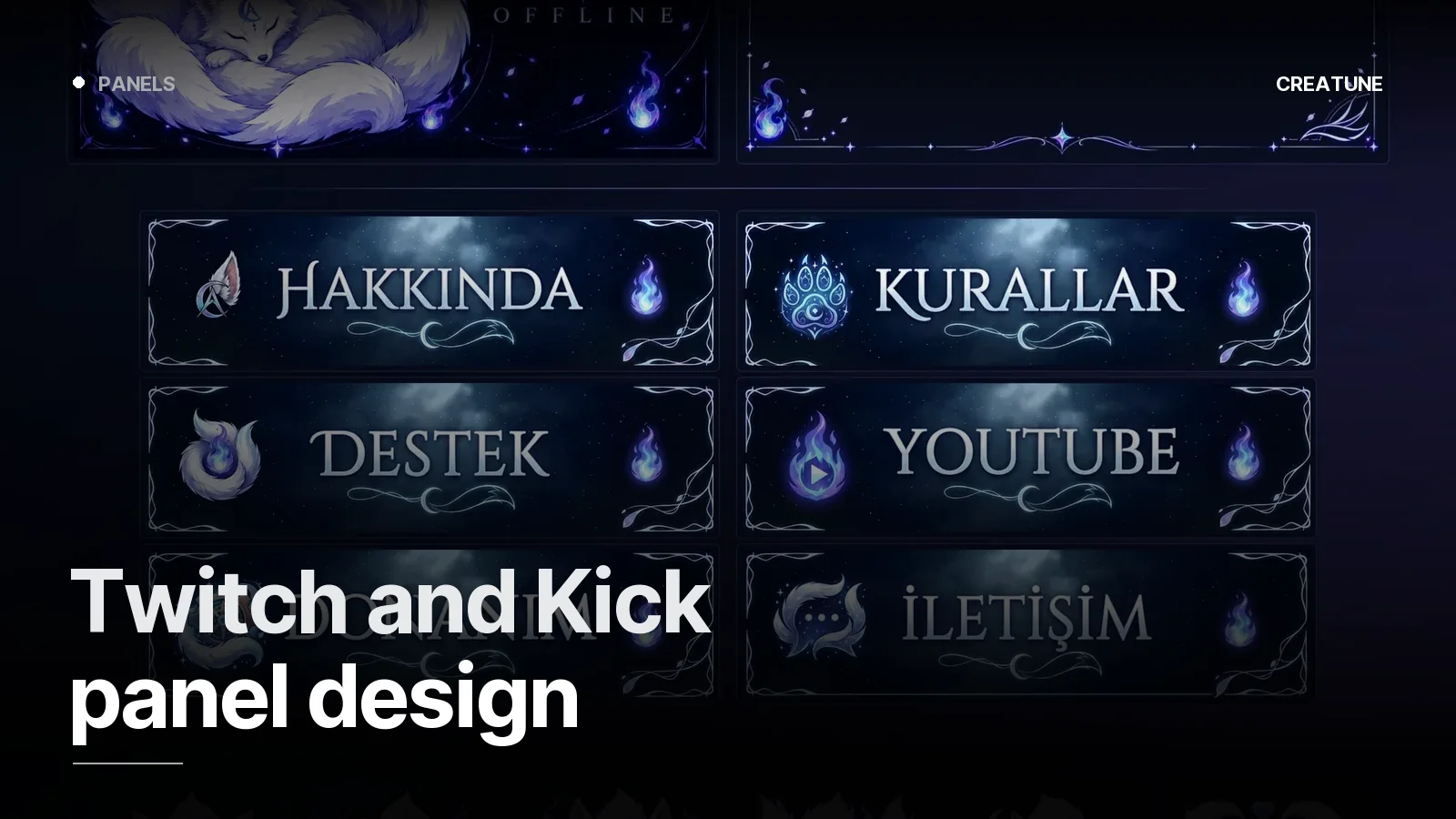
- One frame, one ground, one typeface. Every panel the same skeleton; only icon and title change.
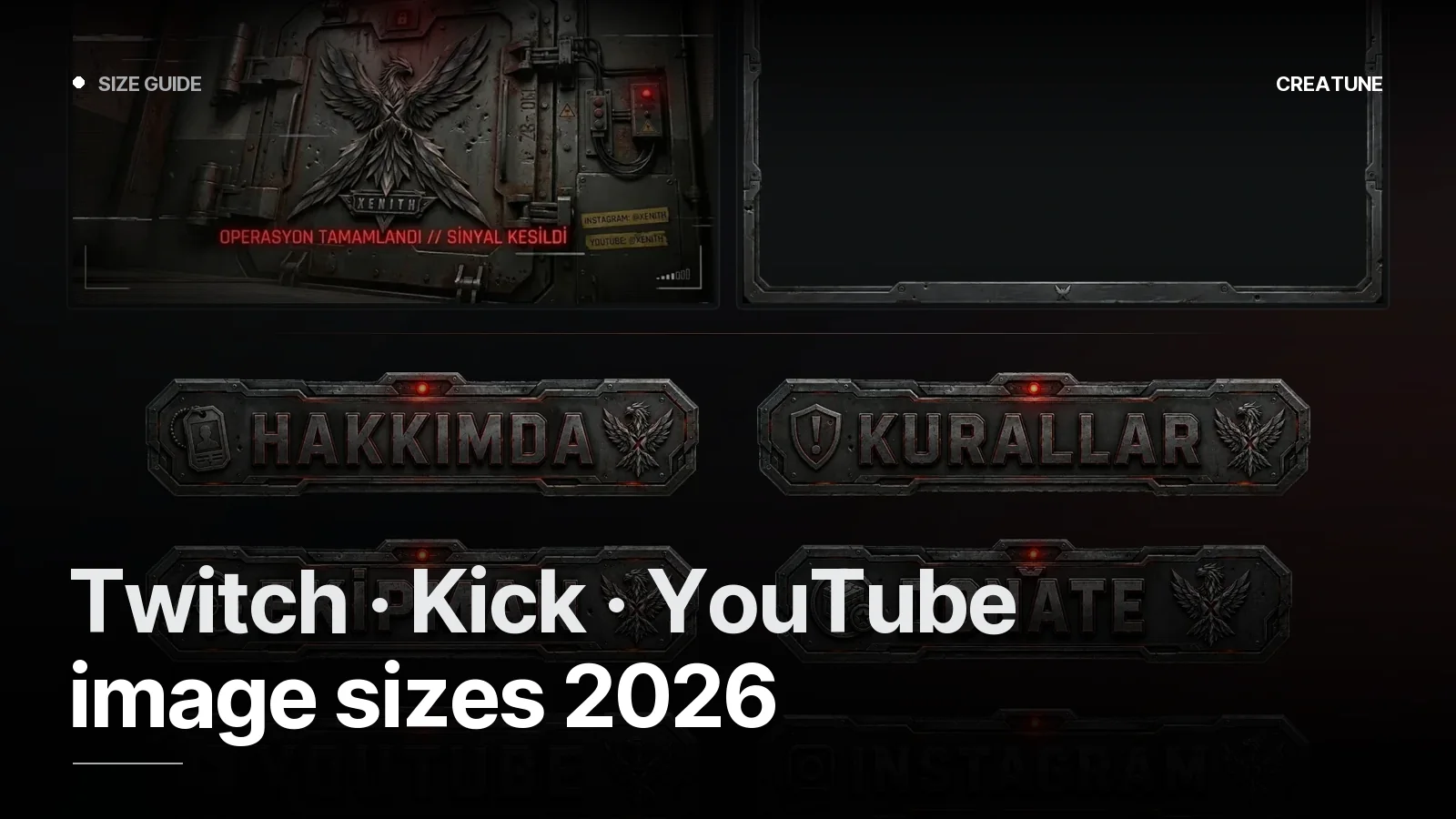
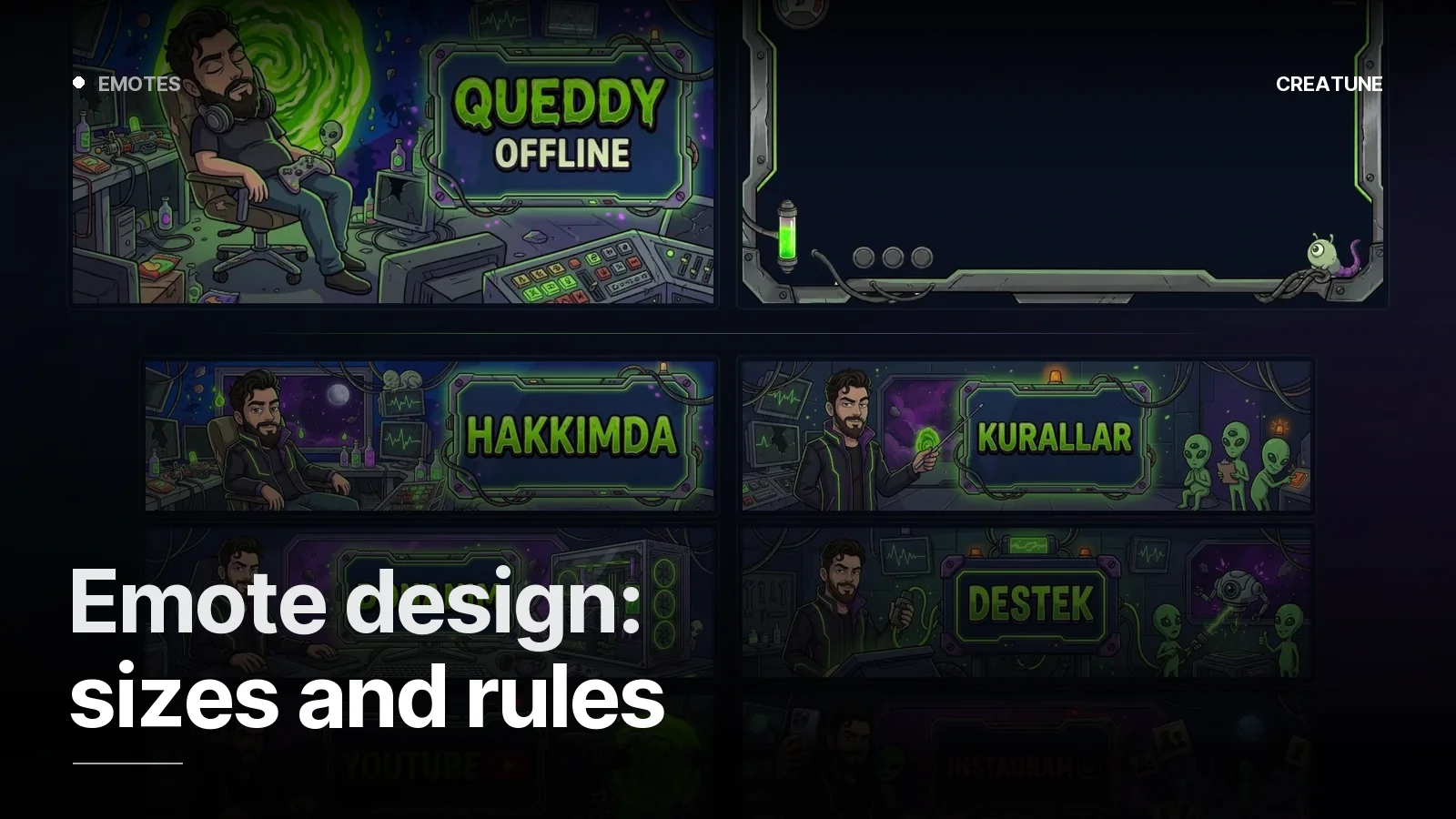
- Icon language from the channel theme: fox paw and moon for Aurcorf, steel plate for Xenith, portal for Queddy. Icon left of the title, fixed size.
- Contrast: visible on both Twitch dark and light themes — an edge line or shadow.
- Same palette as banner and offline screen; panels should feel like the channel's subtitle.
The Kick difference
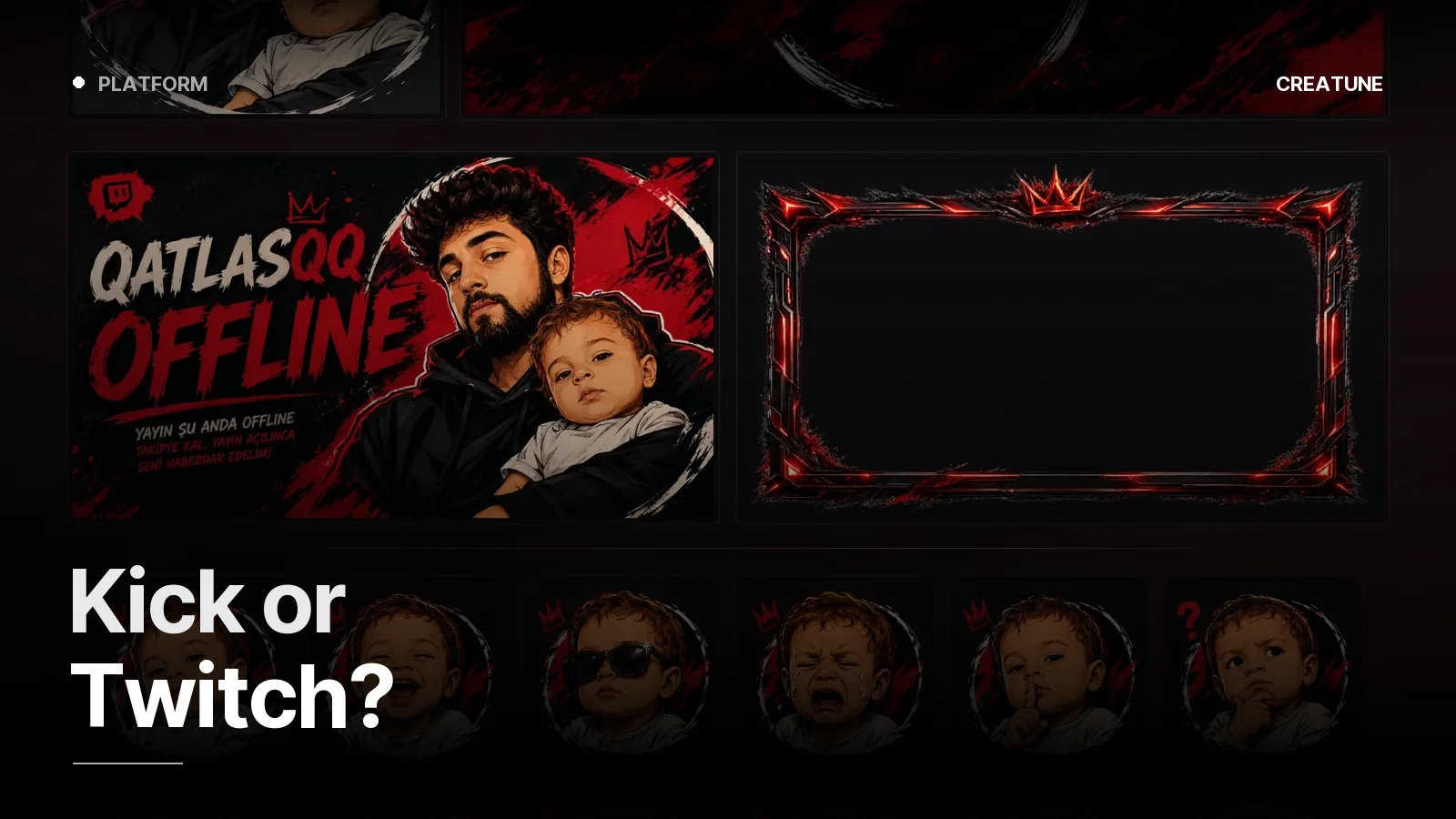
Kick panels sit under the channel page in a larger area; the 320 px rule holds but Kick is forgiving. Because Kick panels are less standardised, a tidy set makes a channel stand out immediately — Kick setup guide.
Uploading (Twitch)
- Your channel page → toggle Edit Panels.
+→ Add Image → pick the 320 px PNG.- Image link: the address that opens on click.
- Description: long text here (Markdown supported).
- Save; drag to reorder — About and Schedule at the top.
Panels are included in every package; for a standalone set, message us on WhatsApp. All sizes: Streamer image sizes 2026.
Frequently asked
1.What size are Twitch panels?
Twitch panel images are 320 pixels wide, up to 600 pixels tall and under 2.9 MB. The common standard is 320×100 pixels; 320×80 for header panels and 320×160 for content panels. Kick also recommends 320 px width.
2.Which panels are essential?
Five panels every channel needs: About, Rules, Socials, Support/Donate and Schedule. Gear/PC, Sponsors, Discord and FAQ panels are added as the channel grows. More than 12 panels tires the channel page.
3.How much does a panel set cost?
Panel banners are included in all four Creatune packages (from Setup at 999 TL). For a standalone panel set (5–8 panels in your channel identity), message us on WhatsApp.
4.How do I upload panels to Twitch?
On your channel page toggle Edit Panels, press + to add a panel, choose Add Image and upload the PNG, enter the link that opens on click (Instagram, Discord, tip page), fill the description and save. On Kick it is Channel settings → Panels, same logic.