How to add alerts on Kick: Botrix and StreamElements setup in OBS (2026)
Setting up follow, sub and donation alerts on Kick: connecting Botrix or StreamElements step by step, adding a browser source in OBS, uploading your own animated alert and testing it.
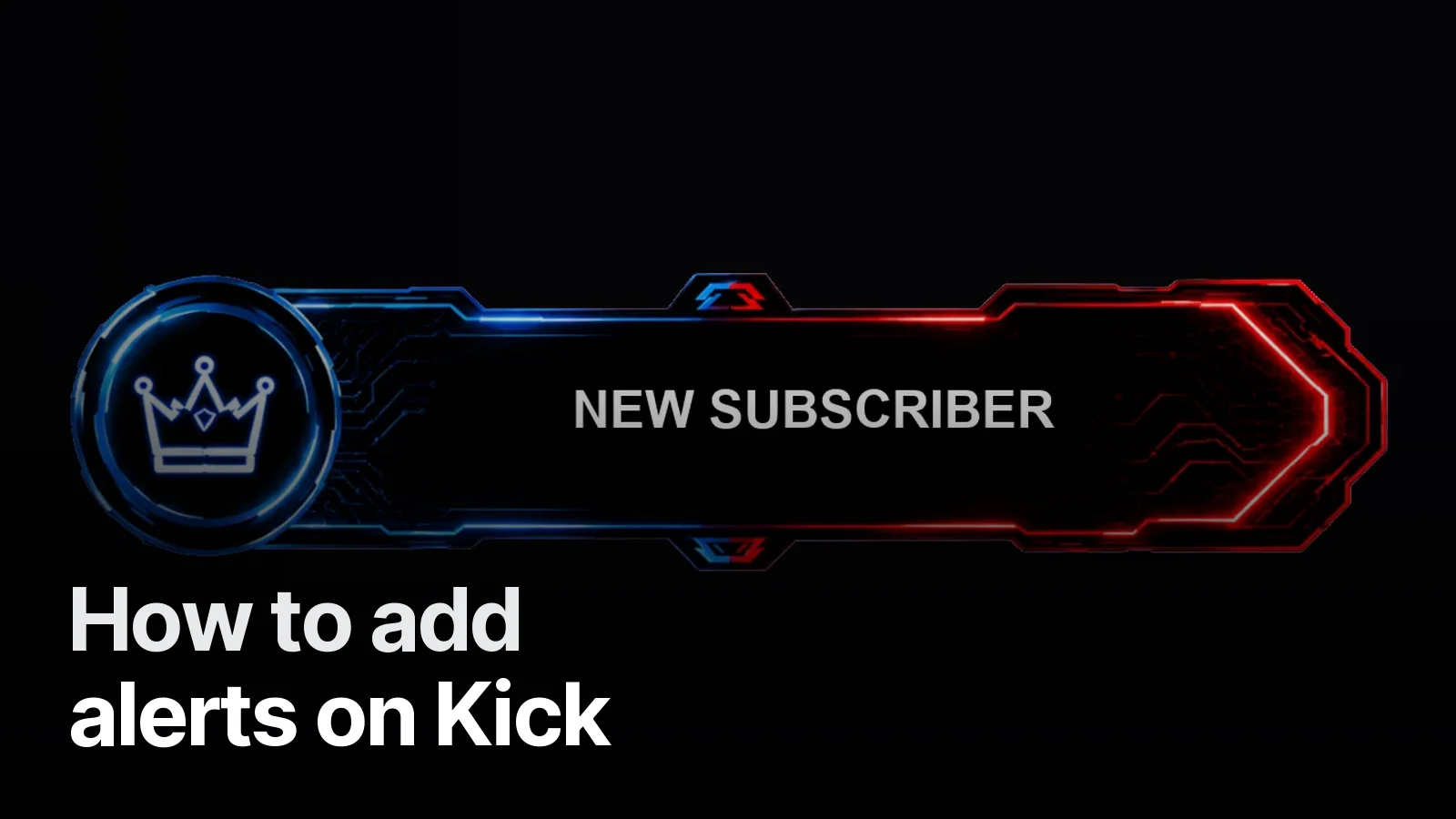
To add alerts on Kick, sign in to a tool like Botrix, KickBot or StreamElements with your Kick account, set up follow/sub/donation alerts, copy the tool's alert URL and paste it into OBS via Add Source → Browser at 1920×1080. Then send a test alert with the tool's test button.
Which tool?
| Tool | Good for | Note |
|---|---|---|
| Botrix | Built for Kick; follow, sub and gifted-sub alerts + chat bot | You make the bot account a moderator on your channel |
| KickBot | A separate URL per event (follows, subs, raids in different scenes) | Kick-focused |
| StreamElements | Alert box + tip page in one overlay; familiar if you come from Twitch/YouTube | Make sure your Kick account is connected |
If you only stream on Kick, Botrix is the most direct path. If you stream on Twitch and Kick at once, StreamElements makes one dashboard easier.
Step by step: Kick alerts with Botrix
- Sign in to botrix.live with your Kick account.
- In Kick's Creator Dashboard, make the Botrix bot account a moderator on your channel.
- Enter the linking code Botrix gives you; the bot confirms your account is linked.
- In Botrix, open Alerts → Followers / Subscriptions and set the image, sound, text and duration.
- Copy the widget URL.
- OBS → Sources →
+→ Browser → paste the URL → width 1920, height 1080. - Move the alert to the corner you want and test.
Step by step: StreamElements
- Sign in to StreamElements and connect your Kick account.
- Streaming tools → Overlays → New overlay (1920×1080).
- Add widget → Alerts → AlertBox: set follow, sub and tip alerts separately.
- Save and grab the overlay link with Copy link.
- Add it in OBS as a browser source (1920×1080).
- Use Emulate in the dashboard to send test alerts.
Upload your own animated alert
Template alerts look the same on every channel. An alert built from your character or logo ties the viewer's "I just followed" moment to your channel.
- Format: WebM with a transparent background (cleanest), or GIF.
- Size: 1280×720 or 1920×1080 canvas, alert centred; scale it in OBS.
- Length: 3–5 s. 0.5 s in, 2–3 s to read, 0.5 s out.
- Text area: the tool writes the follower's name on top; leave that space empty in the design.
- Sound: separate MP3/OGG, around -12 dB.
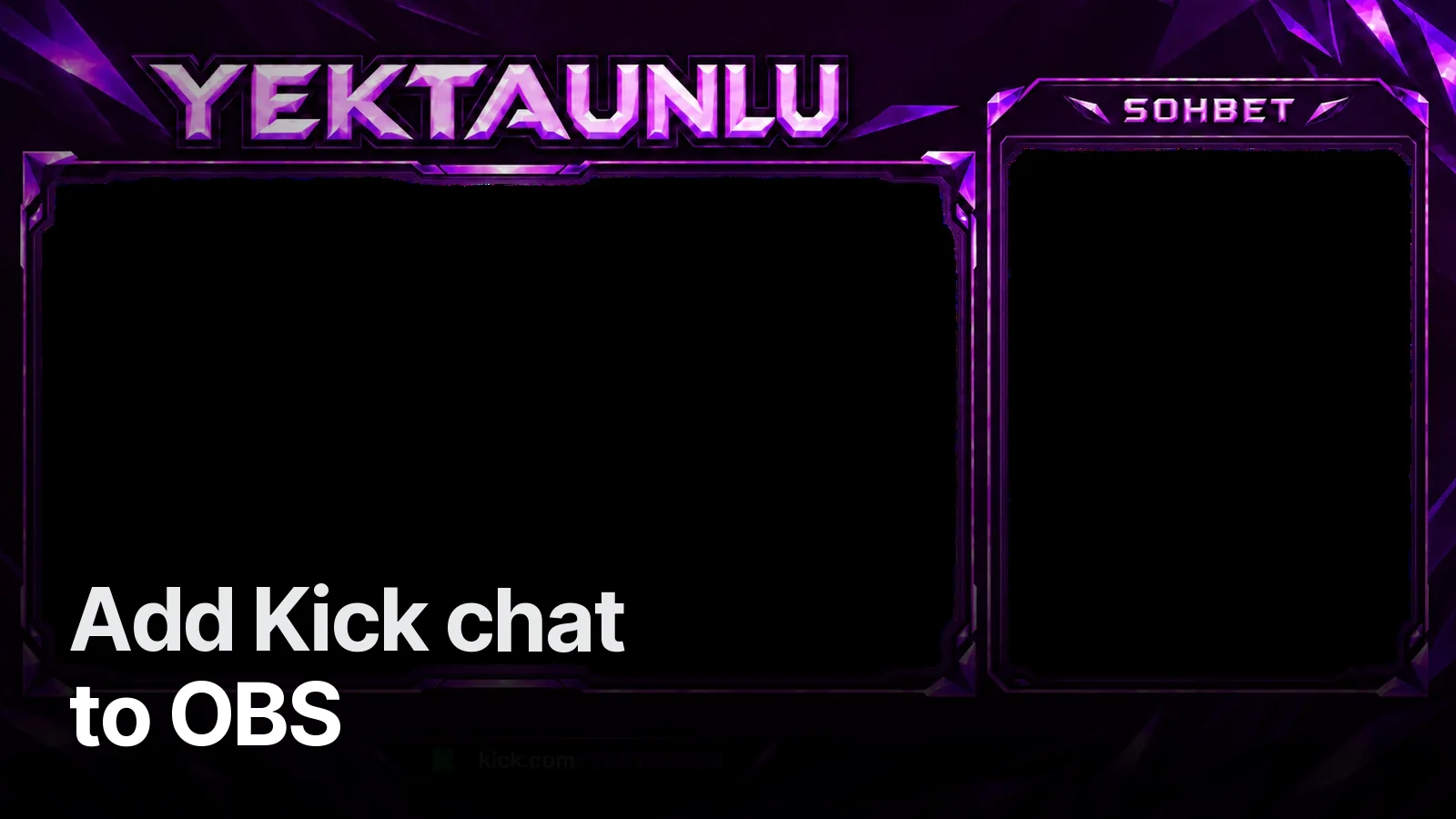
In the Yektaunlu set four StreamElements alerts (new follower, new sub, donation, like) move with the character himself; the name lands on the crystal strip beside him. More examples: alert set and Twitch alert design.
Troubleshooting
- No alert at all → is the source hidden or in the wrong scene? Reconnect the tool to Kick.
- Cut off or tiny → the browser source isn't 1920×1080; fix the source size, then scale in the scene.
- No sound → check "Control audio via OBS" in the browser source and that the source isn't muted in the mixer.
- Delayed → right-click the source → "Refresh cache of current page".
For the full overlay: OBS overlay setup. For an animated alert set built for your channel, see our streamer packages.
Frequently asked
1.Does Kick have its own alert system?
Alerts on Kick are usually set up with third-party tools: Botrix and KickBot, built for Kick, or StreamElements with your Kick account connected. All of them give you a URL that you add to OBS as a browser source.
2.Why isn't my Kick alert showing in OBS?
Most often: the browser source isn't 1920×1080, the source is hidden or in another scene, or the alert tool isn't connected to your Kick account. Send a test with the tool's Test/Emulate button first, then right-click the source in OBS and Refresh.
3.Can I use my own animated alert video?
Yes. Botrix and StreamElements both let you upload your own GIF or WebM in the alert's image/video field. A WebM with a transparent background gives the cleanest result; sound is uploaded separately.
4.How long should an alert be?
3–5 seconds. Longer alerts cover the game and camera, and back-to-back follows queue up. Sub and donation alerts can be a little longer and showier than follow alerts.