How to add Kick chat to OBS: chat overlay and chat screen setup (2026)
Showing Kick chat on stream: the pop-out chat link, KickBot and Botrix chat widgets, the OBS browser source, font size, transparent background and a designed chat screen.
To add Kick chat to OBS, set up the chat widget of a tool like KickBot or Botrix, copy the link and paste it in OBS via Add Source → Browser (width 400–500, height 600–800). If you'd rather not use a tool, open the pop-out chat from Kick's chat settings, copy that window's address and paste it into a browser source the same way.
Two routes
| Route | Pros | Cons |
|---|---|---|
| Chat widget (KickBot, Botrix) | Font, colour, emote size and message lifetime are adjustable; transparent background built in | Needs account linking |
| Kick pop-out chat | No extra tool, the same chat as on Kick | Needs Custom CSS for the look |
In the long run a widget is cleaner: messages can fade after a few seconds and usernames take your channel colours.
Step by step: with a widget
- Sign in to KickBot or Botrix with your Kick account.
- Open Widgets → Chat.
- Set the font, size (22–28 px reads on stream), colour and background (transparent).
- Copy the widget link.
- OBS → Sources →
+→ Browser → paste the URL → width 450, height 700. - Move chat into place; to make it bigger, increase the source's width/height rather than stretching it in the scene.
- After changing settings, right-click the source in OBS → Refresh.
Step by step: with Kick's pop-out chat
- On your channel, click the settings (gear) icon in the chat panel → Popout chat.
- Copy the pop-out window's address.
- Add a Browser source in OBS and paste it.
- In Custom CSS, add a line that makes the background transparent:
body { background-color: rgba(0,0,0,0) !important; } - For bigger text, narrow the source and make it taller; size the source itself instead of scaling it in the scene.
To see chat only yourself (not on stream): OBS → Docks → Custom Browser Docks → add the same address.
A designed chat screen
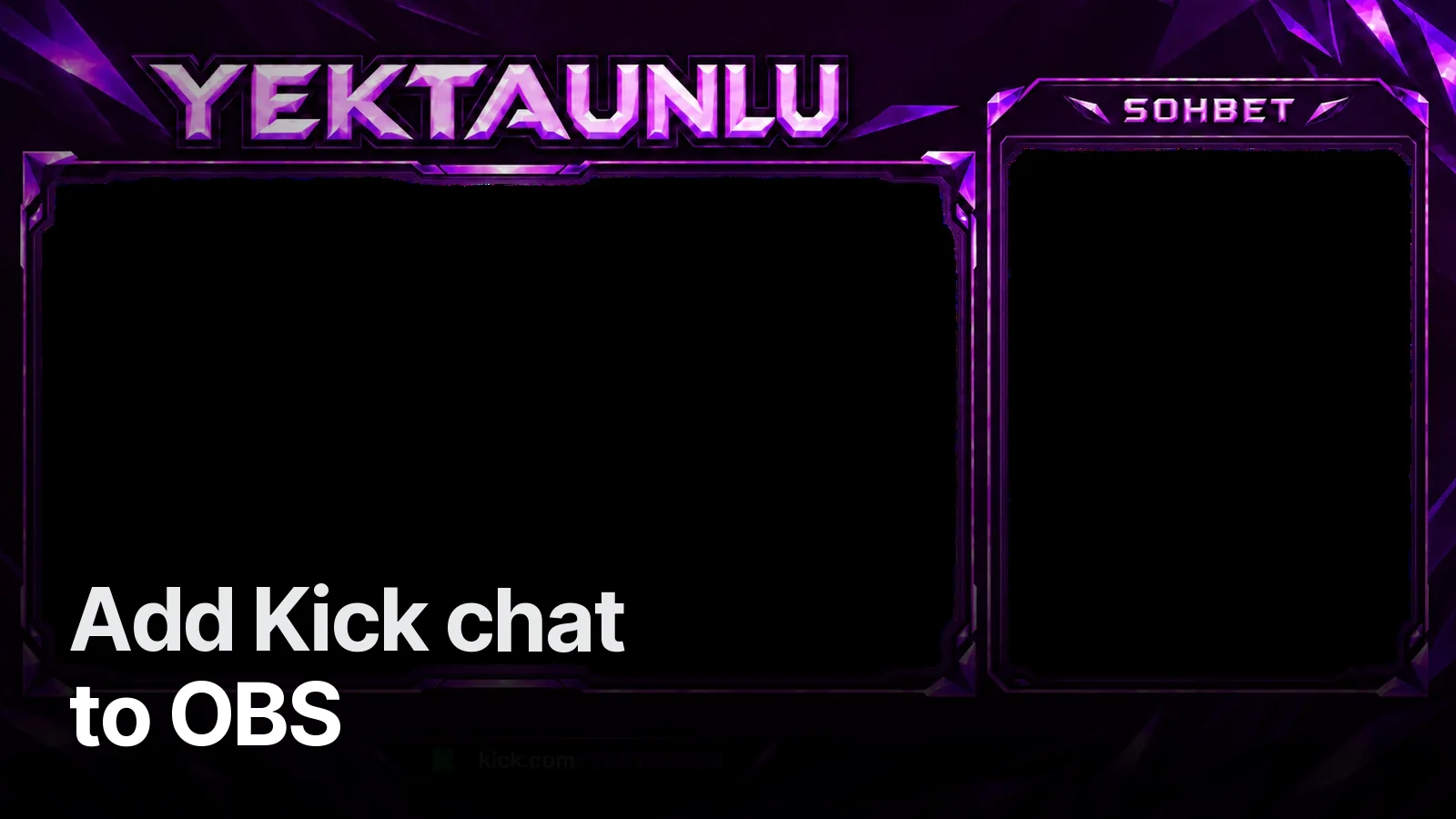
On chat-focused streams, instead of pinning chat to a corner, use a chat screen with areas reserved for camera and chat. The Yektaunlu set has a purple crystal frame: a large camera area on the left, a vertical "CHAT" area on the right and the channel link along the bottom, plus an animated version. The widget is sized to fit that right-hand area exactly.
Tips:
- Keep the chat area at least 420 px wide; narrower cuts usernames.
- A dark, semi-transparent plate inside the chat box keeps text readable.
- On vertical streams (TikTok) chat goes in the bottom third: TikTok LIVE stream pack.
For the rest of the overlay: OBS overlay setup. Overlay and chat screen come together in our larger streamer packages.
Frequently asked
1.How do I add Kick chat to OBS?
The easiest way is a chat widget (KickBot or Botrix): set up the tool's chat widget, copy its link and paste it in OBS via Add Source → Browser. Alternatively open the pop-out chat from Kick's chat settings and paste that window's address into a browser source.
2.How do I make the chat background transparent?
With a widget, turn the background off in its settings. With Kick's own pop-out chat, add a line to the browser source's 'Custom CSS' that makes the background transparent (body { background-color: rgba(0,0,0,0) !important; }).
3.Chat looks blurry on stream — what do I do?
Don't scale the source up in the scene; raise the browser source's width/height values or the widget's font size instead. A scaled browser source gets blurry.
4.Do I need to show chat on stream?
On chat-focused (Just Chatting) streams, yes; on gameplay, small and in a corner, or not at all. Clip viewers understand a moment better when they see chat, which is why the chat screen is designed as its own scene.