Twitch and Kick alert design: follow, sub, donation, raid — StreamElements / Streamlabs setup
How an animated alert set should work: length, sound, alpha WebM, text area, the four core alerts (follow/sub/donation/raid), uploading to StreamElements and Streamlabs, alerts on Kick, and the 4-piece set in the Ultimate package.
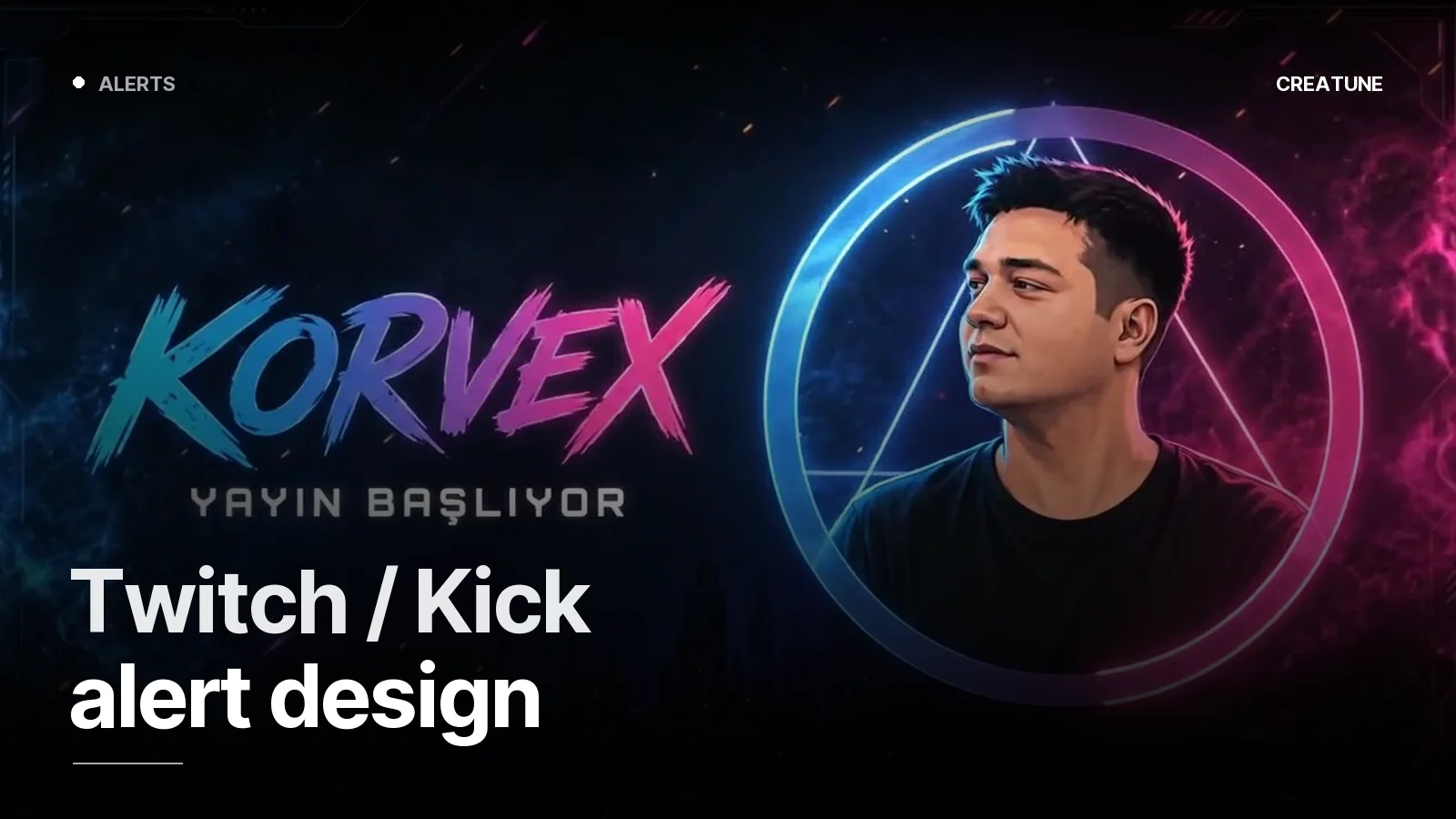
An alert is the thank-you that appears on screen the moment a viewer contributes: a new follower, a sub, a donation, a raid. A well-designed alert rewards the viewer and tells chat "something happened". A badly designed one drops in front of the game and blows out the ears.
The four core alerts
| Alert | Trigger | On screen |
|---|---|---|
| Follow | new follower | short animation + username, 3 s |
| Sub | sub / gifted sub / resub | bigger entry, month count, message area, 4–5 s |
| Donation | tip / bits | amount + message, read by TTS if on, 6–8 s |
| Raid | raid from another channel | "X arrived with N people", channel name, 5 s |
All in one language: same frame, same typeface, same sound family; only colour and size grow with the contribution. The KORVEX and Aurcorf sets carry the same motion language as their stream screens.
Design rules
- Fixed area. The alert always appears in the same spot (usually top centre or beside the camera). It never covers the game HUD.
- Text area left empty. Username and message are written by the platform; the design defines position, font and colour.
- Sound around -10 dB. Never over the mic and game; 0.5–1 s.
- One shot, not a loop. Entry → hold → exit. The hold is calm.
- Sub alert bigger than follow. The alert grows with the contribution; viewers see the difference.
Delivery format
- WebM (VP9, alpha) — full 1920×1080 frame or the alert's own size
- GIF / APNG fallback (for some Streamlabs templates)
- Sound MP3 / OGG separately
- A setup note: which file is which alert, text position, font
StreamElements setup
- streamelements.com → Overlays → new or existing overlay → add AlertBox.
- For each alert type upload the WebM in Image/Video, the sound in Sound.
- Text settings: font (from the delivery), size, position (aligned to the image in the
Layouttab), duration (Alert duration 3–5 s). - Copy the overlay link → OBS → Add Source → Browser → paste, 1920×1080.
- Try every alert with the Test button; set the level in the OBS mixer.
Streamlabs setup
Streamlabs Desktop → Alert Box source → Settings → upload Image and Sound for each alert type, define text and duration. Same logic.
On Kick
StreamElements and Streamlabs connect to a Kick account; follow, sub and gifted-sub alerts work. Nothing changes on the OBS side.
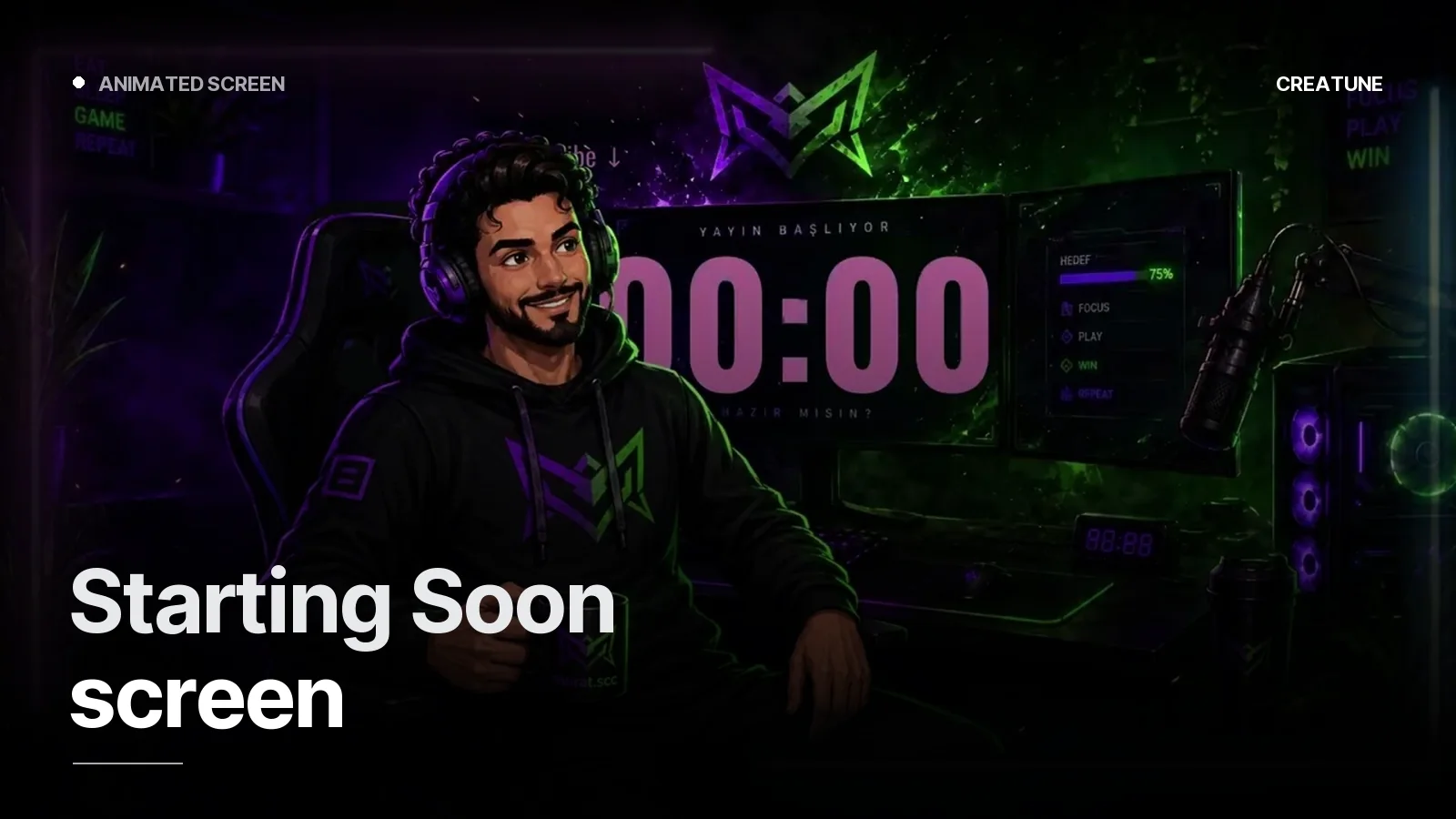
The alert set is included with setup in the Ultimate package; for a standalone set, message us on WhatsApp. To keep it in the same language as your stream screens: Starting Soon screen, stinger transition.
Frequently asked
1.How long should an alert be?
3–5 seconds. Entry 0.5 s, text readable for 2–3 s, exit 0.5 s. A donation alert with a message to read goes to 6–8 s. Anything longer queues up when follows come in back to back.
2.What format should an alert be?
Alpha-channel WebM (VP9) or transparent GIF/APNG; 1920×1080 or the alert's actual size (e.g. 800×300). Sound as a separate MP3/OGG. StreamElements and Streamlabs accept both; WebM is higher quality and smaller.
3.Do alerts work on Kick?
Yes. StreamElements and Streamlabs connect to a Kick account; follow, sub and gifted-sub alerts fire. Setup is the same as Twitch: a browser source link added in OBS.
4.How much does an alert set cost?
The 4-piece alert set (follow / sub / donation / raid) is included in the Ultimate package (5,000 TL) with StreamElements/Streamlabs setup. For a standalone set, message us on WhatsApp; with an existing channel identity it is produced in the same language.