Starting Soon screen: animated or static, how long, and how to add it in OBS
How a Starting Soon screen should work: ideal length, countdown, music, animated vs static, step-by-step OBS setup and Creatune's animated screen examples.
Viewers usually arrive before you do. The Starting Soon screen is the first 2–5 minutes in which your channel greets them — and the place where they decide whether to stay.
Animated or static?
A static Starting Soon image is a "closed" sign. An animated screen is a stage: the logo breathes, particles or camera motion run in the background, the countdown ticks, music plays. The difference between the two is whether chat fills up in those first minutes.
Rule of thumb: every channel streaming 3+ days a week should use an animated Starting Soon screen. At Creatune it comes in the Starter, Deluxe and Ultimate packages; in Deluxe, Break and Ended are animated too.
Anatomy of a good Starting Soon screen
- Channel name / logo — readable in the first second, centred or in a fixed corner.
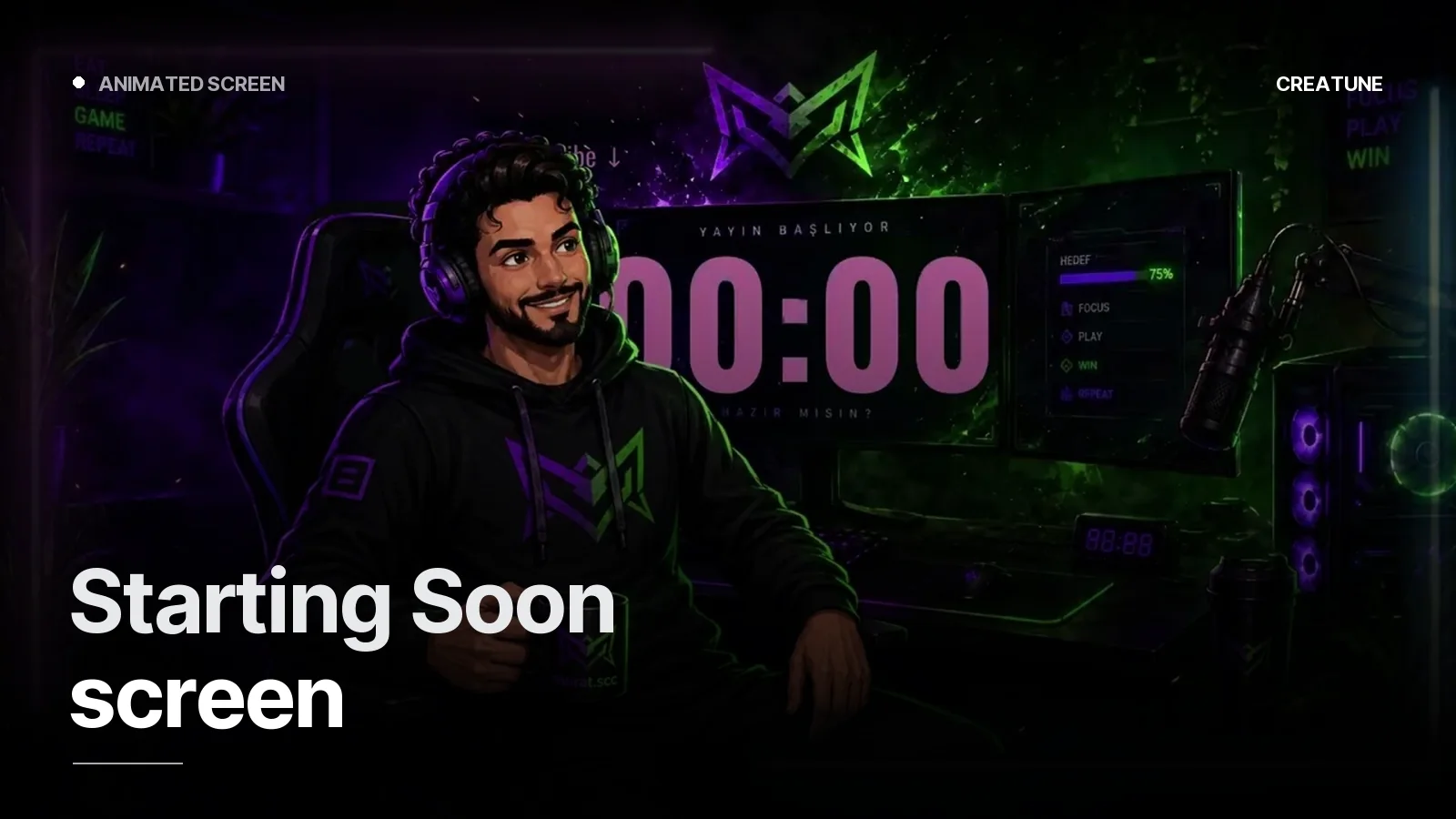
- Countdown — from "5:00" down; tells viewers how long to wait. We built a custom countdown screen for murat.scc.
- Animated background — from the channel theme: neon light, moonlight, smoke, a portal. No visible seam in the loop.
- Chat area (optional) — let the people waiting talk to each other.
- Social strip — waiting time is follower-gaining time.
- Music — on a separate layer; copyright-safe (Epidemic, StreamBeats, Pretzel etc.).
Length and loop
The screen itself should be a perfect 10–20 second loop; OBS "Loop" plays it forever. To avoid a jump at the loop point, the animation returns to its first frame (first and last frames identical). Countdowns are added as a separate layer (OBS timer plugin, or a separate 5-minute render).
Adding it in OBS (step by step)
- In Scenes press
+→ scene named "Starting Soon". - Sources →
+→ Media Source → pick the MP4 → tick Loop → "Restart playback when source becomes active". - Music: Media Source or Audio Input; keep it around -12 dB in the mixer.
- Countdown: Tools → Timer, or a Text source + script.
- Connect the scene change with a Stinger — how.
- Once you switch to the main scene, the Starting Soon audio stops automatically (Media Sources pause outside the active scene).
Delivery format: MP4 (H.264, 1920×1080, 60 fps) plus, on request, alpha WebM (for use on top of an overlay).
Examples
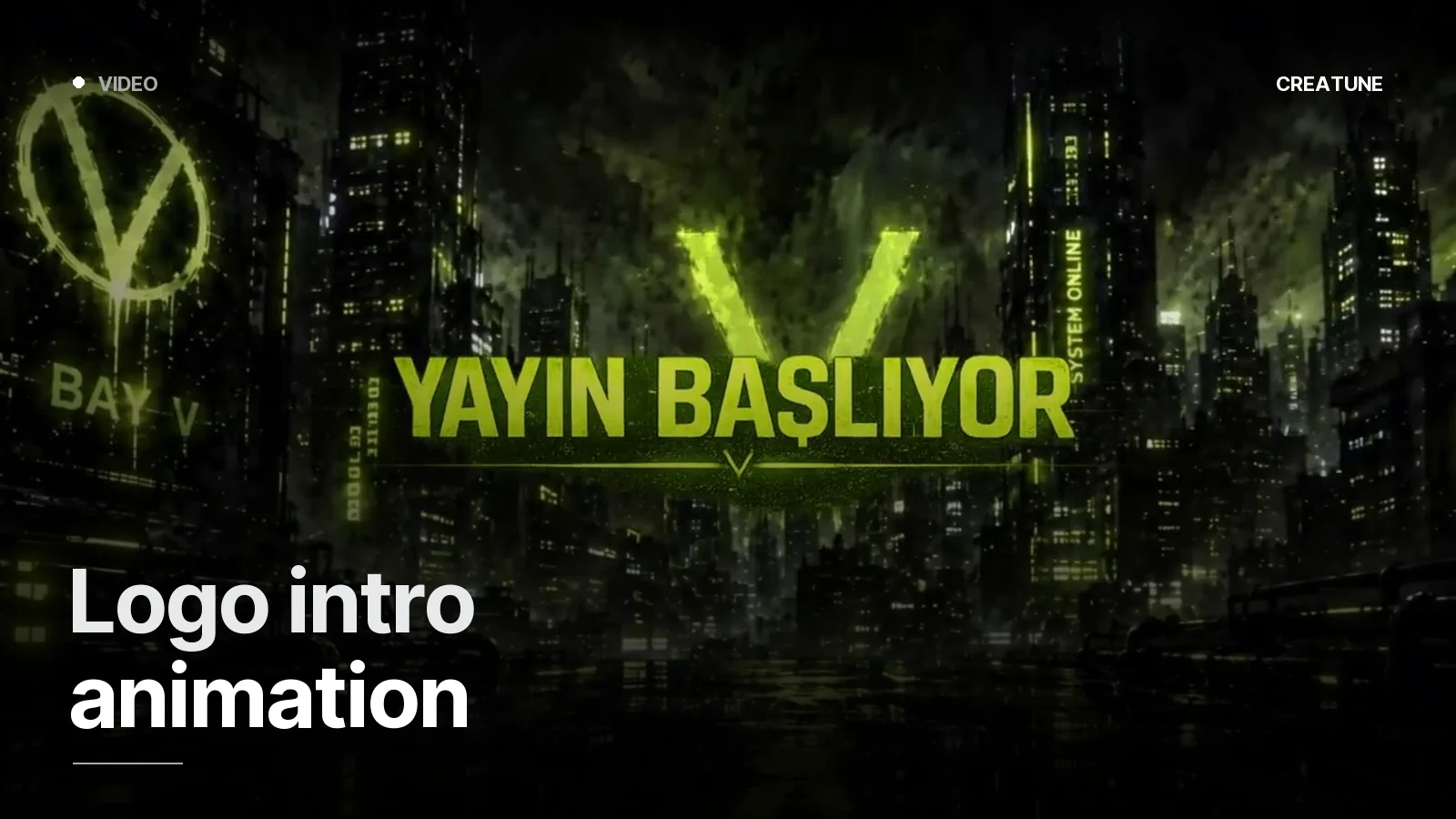
- KORVEX — logo animation, ambient effects and countdown; opening and ending screen pair.
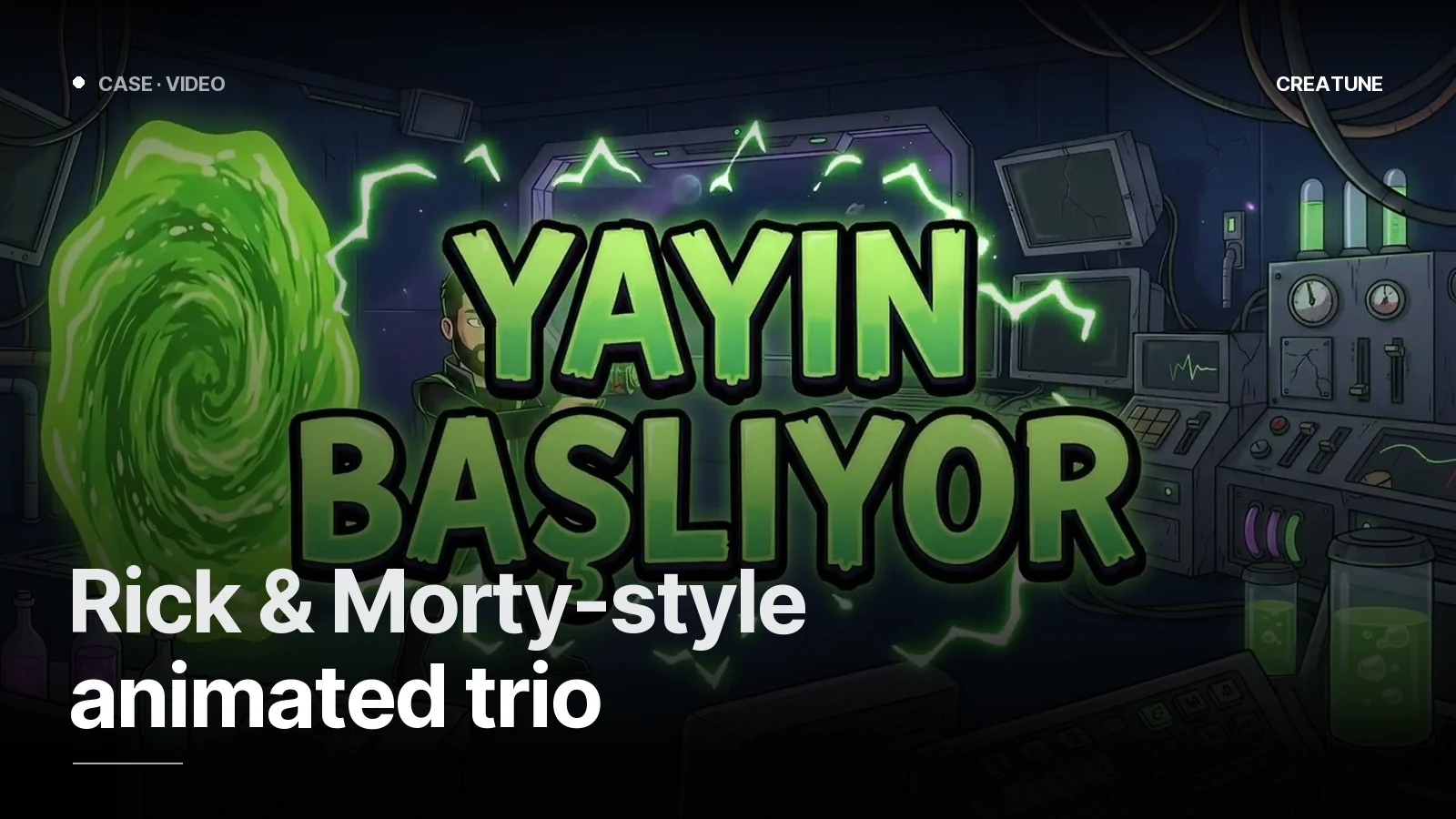
- Rick & Morty-style set — Starting Soon, Ended and stinger in a cartoon language.
- Neon countdown — animated frame with reserved chat and social areas.
For an animated screen, message us on WhatsApp; we propose one direction based on your channel's theme and work through previews.
Frequently asked
1.How long should a Starting Soon screen be?
A 10–20 second animated loop is ideal; with Loop enabled in OBS it plays forever. If you use a countdown, add a separate 5-minute timer layer and keep the screen itself a short loop.
2.How do I add a Starting Soon screen in OBS?
Create a new scene, Add Source → Media Source, pick the MP4, tick "Loop". Connect the scene change with a stinger. Add music as a separate audio source so it can be swapped easily if there is a copyright issue.
3.How much does an animated Starting Soon screen cost?
At Creatune the animated Starting Soon screen comes in Starter (1,499 TL, Kick), Deluxe (2,999 TL) and Ultimate (5,000 TL); in Deluxe the Break and Ended screens are animated too. For a single animated screen, message us on WhatsApp.
4.Does animated really make a difference over static?
Yes. Viewers usually join in the first 2–3 minutes, and the only thing they see in that window is the Starting Soon screen. Motion, sound and a countdown hold them; on a static image the drop-off is noticeably higher.