Moving from Twitch to Kick: what to redo when you bring your channel design over
A design guide for streamers moving from Twitch to Kick: which graphics carry over as-is and which need remaking at Kick sizes (banner, emotes, panels, offline screen), alerts and chat setup, and the move announcement.
Moving from Twitch to Kick doesn't mean redoing your whole design. Everything that runs in OBS (overlay, webcam frame, Starting Soon, transitions, alerts) carries over as-is; graphics uploaded to the platform (banner, profile, emotes, panels, offline screen) need preparing at Kick sizes. The most common mistake is uploading the Twitch banner unchanged and losing text and faces to the crop.
What carries over, what gets remade
| Item | Carries over? | Note |
|---|---|---|
| Overlay, webcam frame | As-is | Runs in OBS, platform-independent |
| Starting Soon / BRB / Ending | As-is | Swap any "Twitch" text and logos |
| Stinger transition | As-is | |
| Alerts | Graphics as-is | Reconnect with a Kick-compatible tool |
| Channel banner | Remake | Twitch 1200×480 → Kick 1280×700+ |
| Profile picture | Usually as-is | Square, 512×512 is safe |
| Offline screen | Check | 1920×1080, update social links |
| Emotes | New exports | Kick 500×500 PNG/GIF |
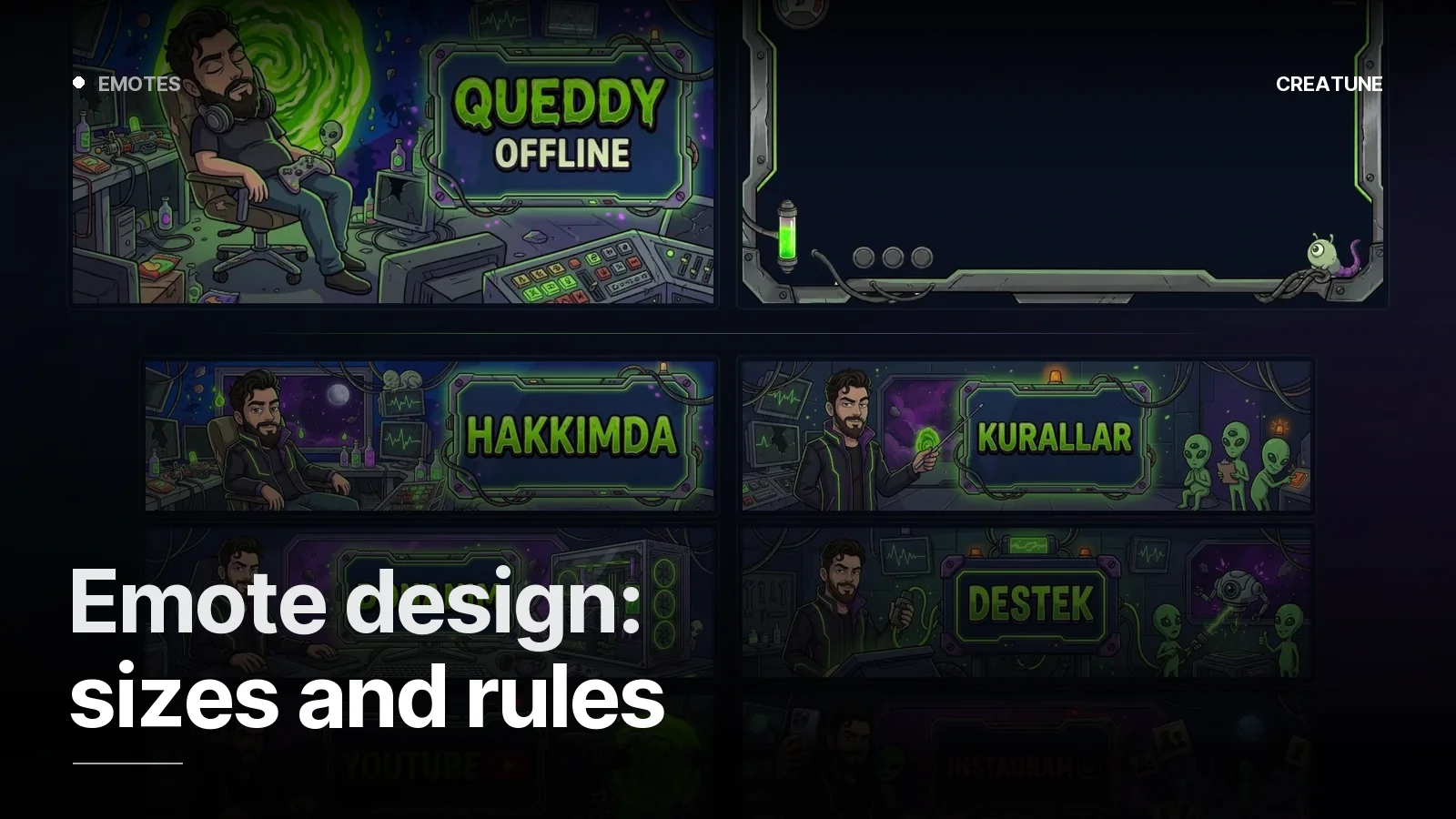
| Panels | Remake | Fit Kick's panel area |
| Subscriber badges | Remake | Kick's own system |
All sizes in one place: Streamer image sizes 2026.
The banner breaks first
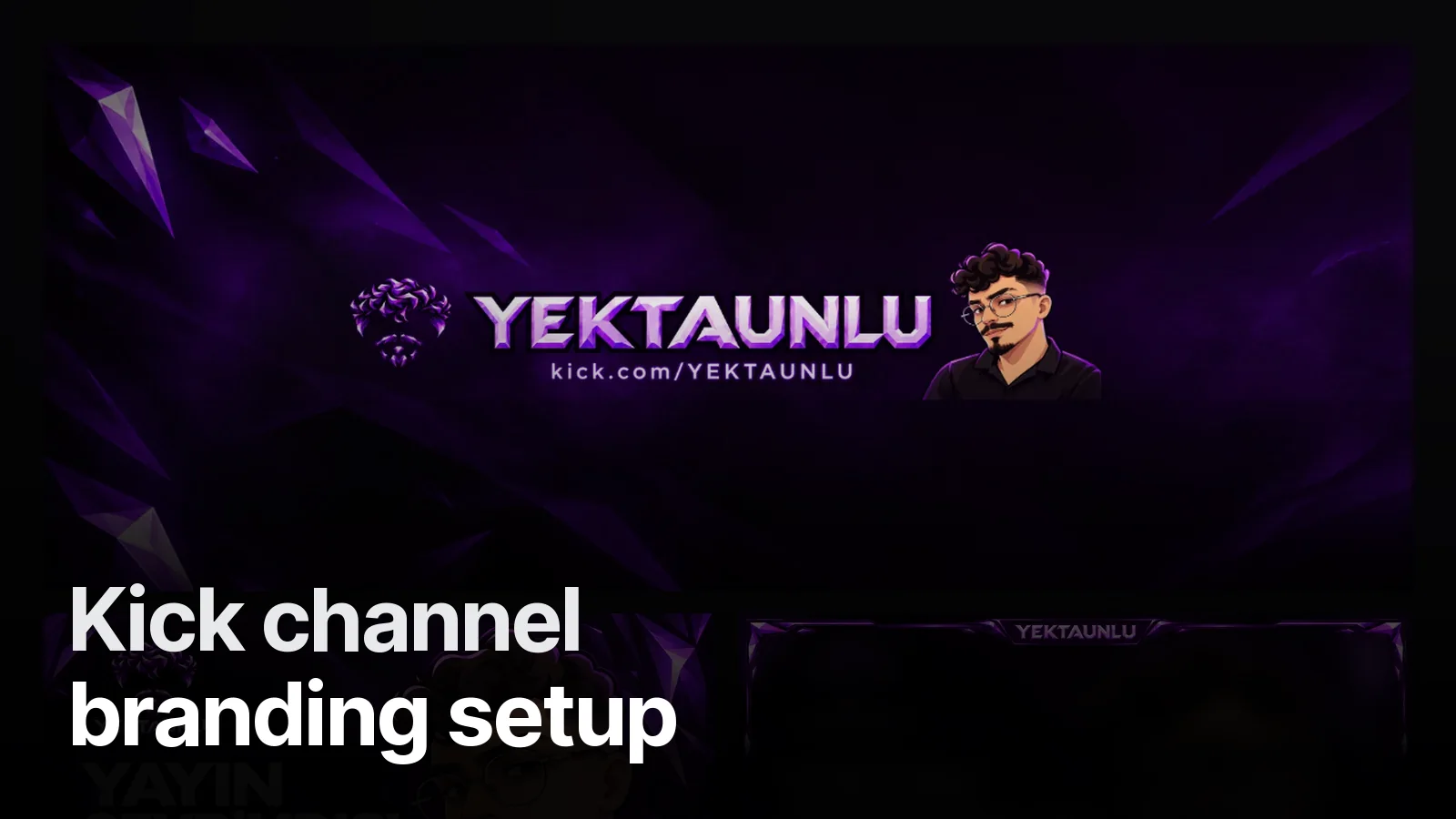
The Twitch banner uses a flatter ratio. Uploaded to Kick, the edges get cropped and central text or a character's face can spill. A new layout at Kick's ratio from the source file is a quick job that saves the channel's first impression. More: Kick stream design: banner sizes.
Emotes need bigger exports
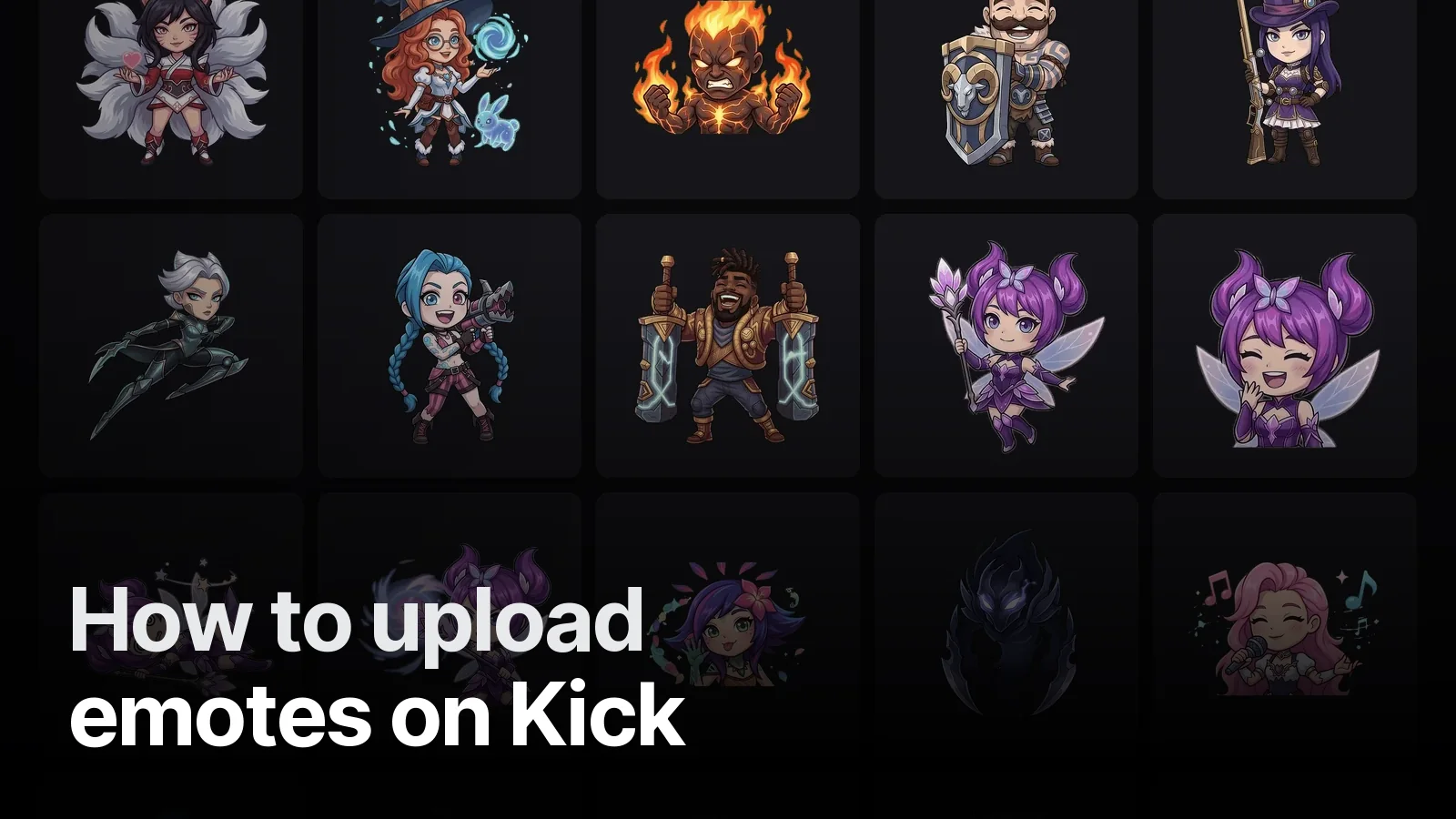
Twitch emotes upload at 28, 56 and 112 pixels; Kick wants 500×500. Upscaling a 112-pixel file looks blurry. Export again from the source, and prepare animated emotes as GIFs. Steps: How to upload emotes on Kick.
Alerts and chat
Alert graphics stay the same but need reconnecting to a tool that reads Kick events (Botrix, StreamElements and similar). Chat goes into OBS through Kick's own chat link. Guides: How to add alerts on Kick · How to add Kick chat to OBS.
Announce the move
Bringing your audience matters as much as design. Announce the new channel link in your last Twitch streams and on social, and put a "We're on Kick now" image on your Twitch offline screen. That small announcement graphic is often the most shared design you'll have.
A fresh start on Kick
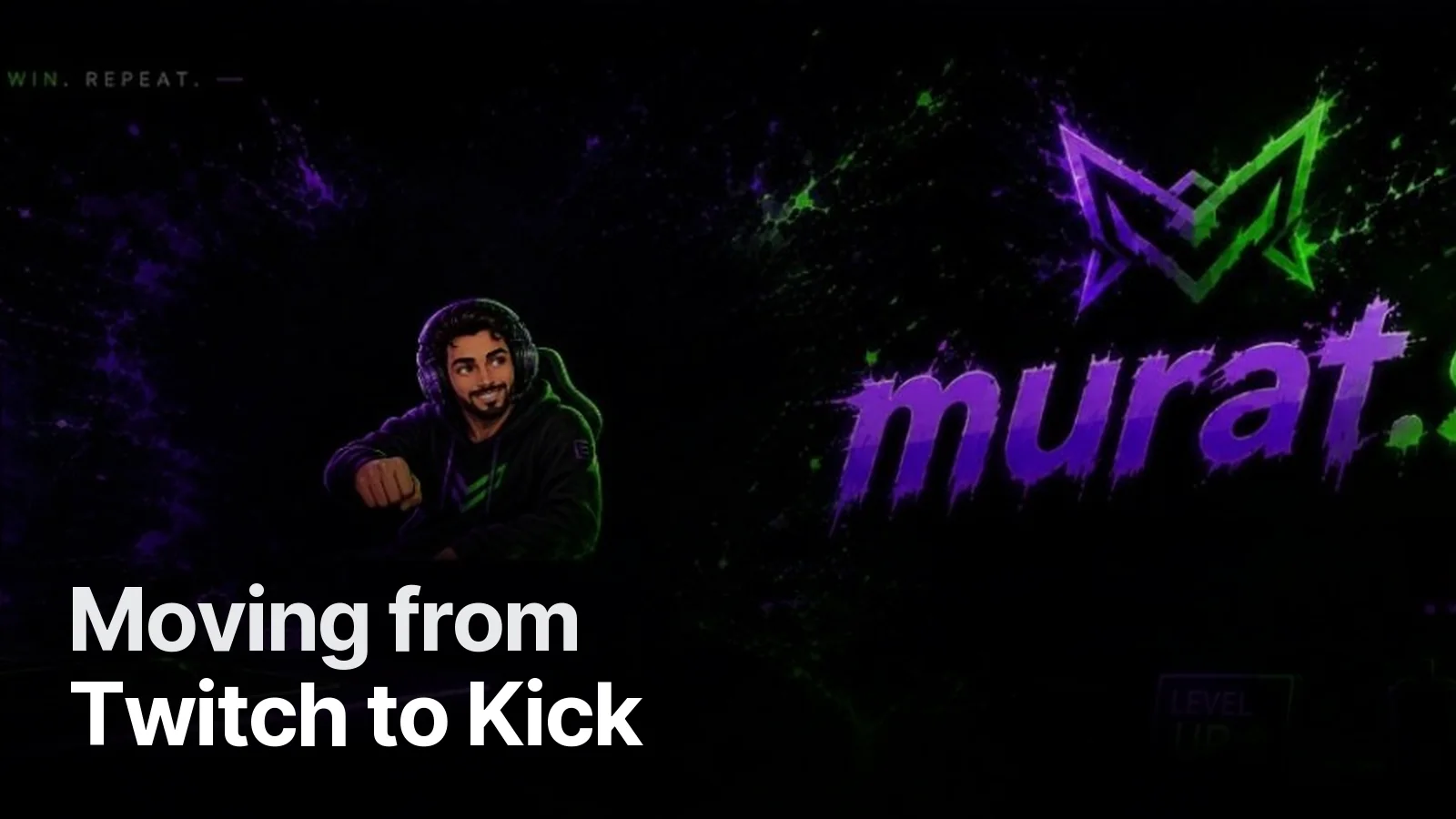
For Kick channels like murat.scc and Yektaunlu we built the identity around Kick's sizes from the start. The Kick starter in our streamer packages includes 6 emotes, panels, a webcam frame, an offline screen, a Starting Soon video and a transition, with Kick channel setup and OBS scene placement. Still deciding? Kick or Twitch?
Frequently asked
1.Can I use my Twitch graphics on Kick?
Overlays, webcam frames, Starting Soon screens and transitions run in OBS, so they carry over as-is. Graphics uploaded to the platform itself, such as the banner, emotes and profile picture, need re-cropping or remaking at Kick sizes.
2.Is the Kick banner size different from Twitch?
Yes. The Twitch profile banner is 1200×480, while the Kick channel banner is recommended at 1280×700 or larger, with a different ratio. Uploading the Twitch banner as-is crops text and faces.
3.How do I move my emotes to Kick?
Kick emotes upload as 500×500 PNG or GIF. Files made for Twitch at 112×112 look blurry on Kick; export new 500×500 versions from the source files.
4.Can Creatune adapt my channel for Kick?
Yes. If your identity is solid, adapting it to Kick sizes is enough; if you want a fresh start on Kick, our Kick starter package includes channel setup and OBS scene placement.