How to stream on Kick with OBS: stream key, bitrate and the best settings (2026)
Your first Kick stream with OBS Studio: where the stream key and RTMP URL are, the Custom service setup in OBS, bitrate for 1080p60 and 720p, keyframe interval, encoder choice, scenes and a pre-stream checklist.
To stream on Kick with OBS, copy the Stream URL and Stream Key from Kick's Creator Dashboard → Stream, choose Settings → Stream → Service: Custom in OBS and paste both, set CBR, 6,000 kbps, 2-second keyframe interval in Output, pick 1920×1080 / 60 fps in Video and hit Start Streaming.
Recommended OBS settings (Kick)
| Setting | 1080p60 | 720p60 | 720p30 (weak connection) |
|---|---|---|---|
| Output resolution | 1920×1080 | 1280×720 | 1280×720 |
| FPS | 60 | 60 | 30 |
| Video bitrate | 6,000–8,000 kbps | 4,500 kbps | 3,000 kbps |
| Rate control | CBR | CBR | CBR |
| Keyframe interval | 2 s | 2 s | 2 s |
| Audio | AAC 160 kbps, 48 kHz | same | same |
| Upload needed | ~12 Mbps | ~7 Mbps | ~5 Mbps |
Kick's accepted limits can change; check the current figure in Kick's help centre before a big stream. If in doubt, start at 6,000 kbps and raise it if stream health stays clean.
Step by step
- Get your key: kick.com → profile icon → Creator Dashboard → Stream → copy Stream URL + Stream Key.
- OBS → Settings → Stream: Service Custom...; Server = Stream URL, Stream Key = Stream Key.
- Settings → Output: Output Mode Advanced → Streaming tab:
- Encoder: NVENC H.264 on NVIDIA, AMF on AMD, otherwise x264 (veryfast).
- Rate Control: CBR, Bitrate: 6000.
- Keyframe Interval: 2.
- Settings → Audio: 48 kHz sample rate; Output → Audio → 160 kbps.
- Settings → Video: Base (canvas) 1920×1080, Output 1920×1080 (or 1280×720), 60 FPS.
- Build your scenes (below) and Start Streaming.
- Open your channel on another device and check audio, picture and delay.
Scenes to set up
| Scene | Contents |
|---|---|
| Starting Soon | Looping video + music + (optional) countdown — guide |
| Game | Game capture + camera + webcam frame + overlay + alerts |
| Just Chatting | Big camera + chat |
| BRB | Looping video, no mic — guide |
| Stream Ended | Closing screen + social links |
For scene transitions use a stinger; for follow and sub notifications, Kick alert setup.
Pre-stream checklist
- Mic peaks between -12 and -6 dB while talking, never in the red.
- Game audio 6–10 dB below the mic.
- No dropped frames in OBS's status bar (red percentage? lower the bitrate).
- No encoding lag (high CPU/GPU? lower the preset).
- Overlay, camera and alerts in the right scenes.
- Stream title, category and language set on Kick.
After the settings: your channel's look
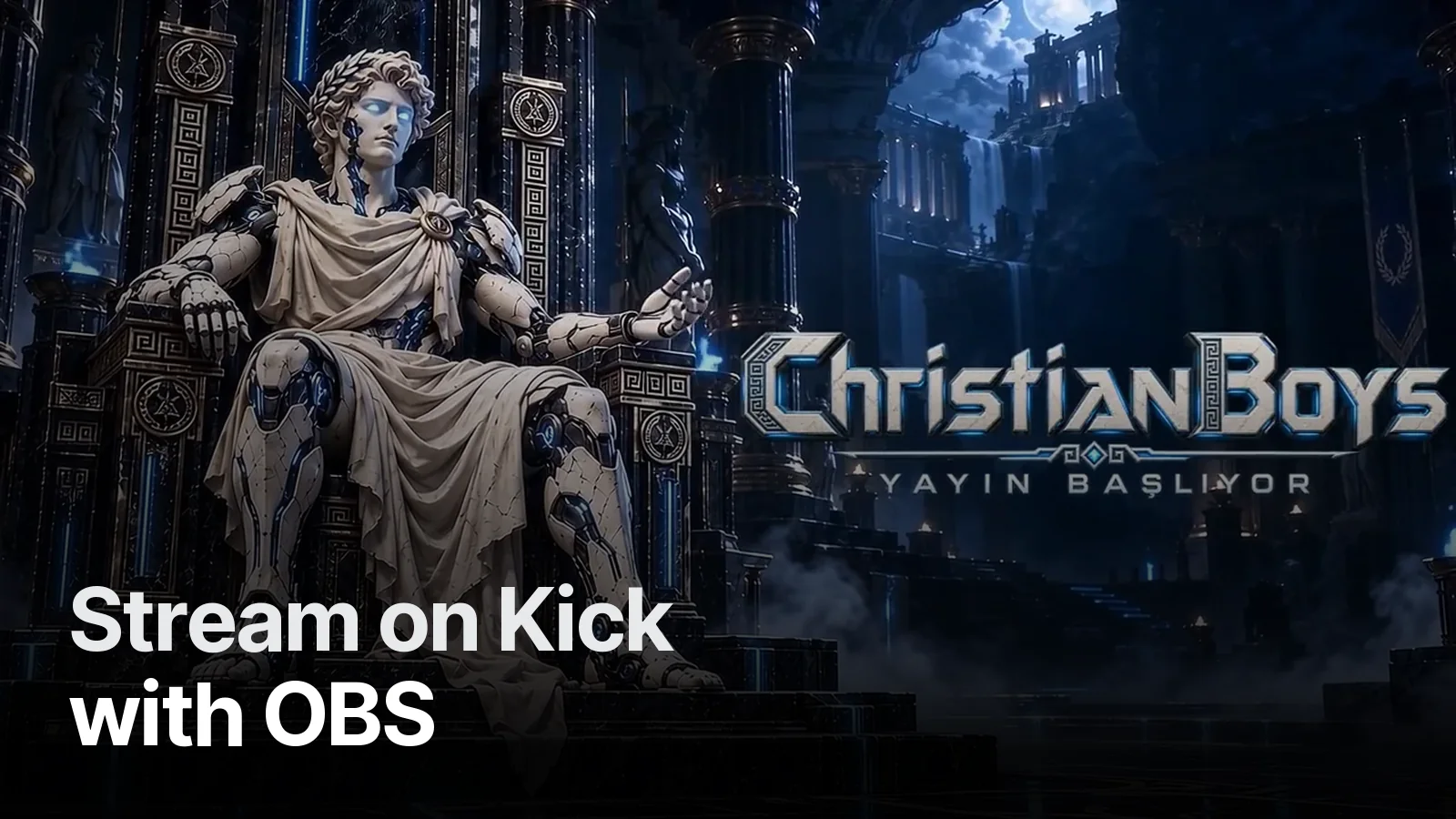
Technical settings make the stream work; what keeps viewers is the screen they see the moment they open it. ChristianBoys opens with an animated Starting Soon screen where a marble statue wakes on its throne, and moves between scenes with closing marble panels. For the whole channel: how to set up Kick channel branding and our streamer packages.
Frequently asked
1.Where is my Kick stream key?
On kick.com: profile icon → Creator Dashboard → the Stream settings section. The Stream URL (RTMP server) and Stream Key are listed together. Never share the key; if it leaks, regenerate it on the same screen.
2.What bitrate for Kick?
Around 6,000 kbps is a good start for 1080p60; on a solid connection you can go to 8,000 kbps. 4,500 kbps is enough for 720p60 and 3,000 for 720p30. Your upload speed should be at least 1.5× the bitrate you use.
3.What keyframe interval for Kick?
2 seconds. In OBS: Settings → Output → Output Mode: Advanced → Streaming tab, set 'Keyframe Interval' to 2. Leaving it at 0 (auto) can cause freezing and delay for some viewers.
4.Kick isn't in OBS's service list — what do I pick?
Choose 'Custom...' as the service; paste Kick's Stream URL into Server and the Stream Key into Stream Key. If Kick shows up in the list in newer OBS versions you can pick it; it still asks for the same key.