YouTube live stream design: overlay, chat, banner and vertical streams (2026)
A design guide for gamers and creators going live on YouTube: channel banner and safe area, live stream thumbnails, overlay and chat, membership badges, horizontal + vertical layouts and turning streams into Shorts.
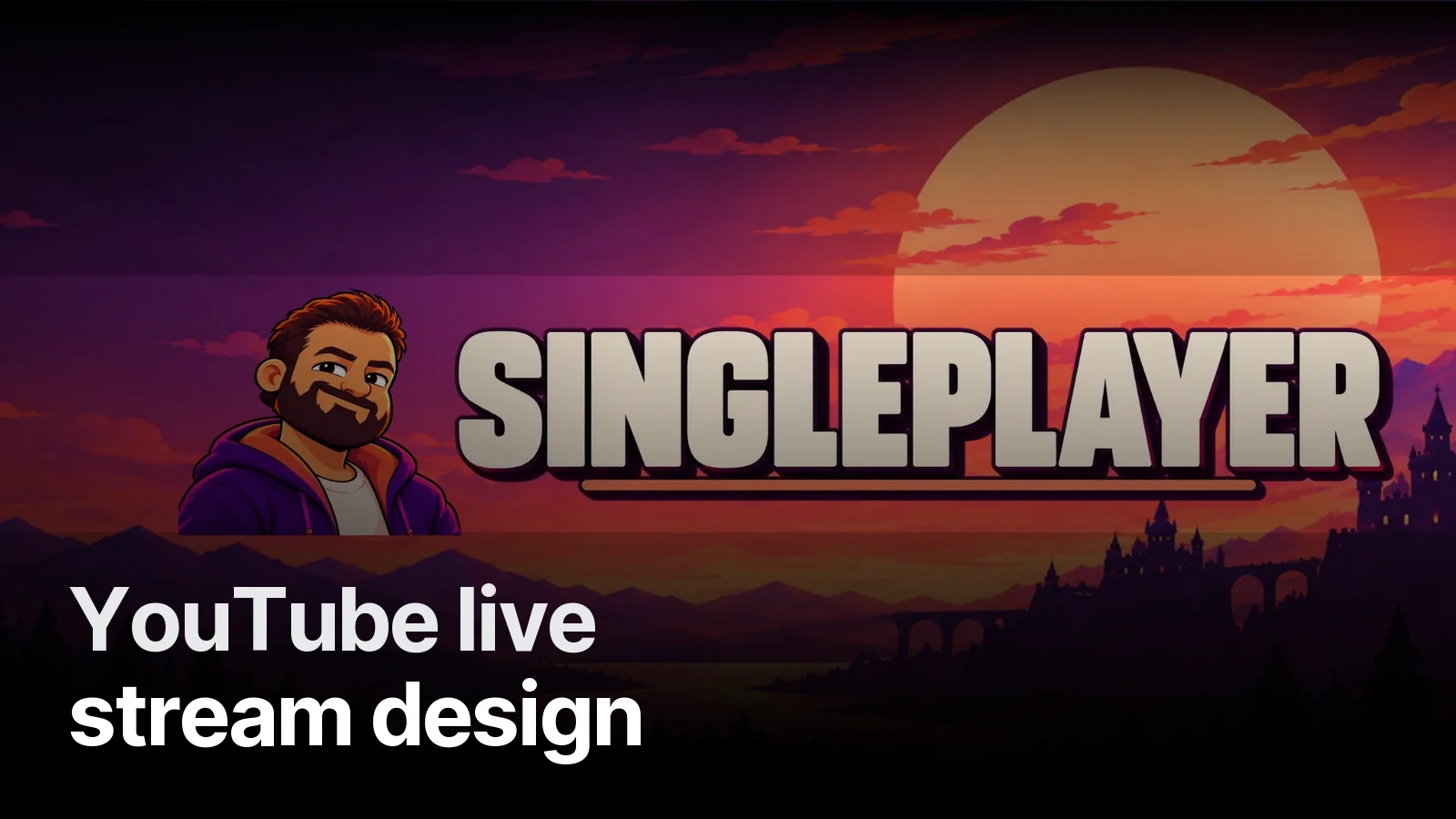
YouTube live design parts ways with Twitch and Kick at one point: the stream keeps living as a video after it ends. So beyond the overlay and chat, two things matter: a live stream thumbnail that gets clicked in recommendations, and a layout that plans for the Shorts you'll cut from the recording. The core set: banner, profile, thumbnail template, overlay and webcam frame, chat styling, Starting Soon and BRB screens.
Design checklist for YouTube live
| Item | Size / note |
|---|---|
| Channel banner | 2560×1440, safe area ~1546×423 |
| Profile picture | Square, cropped to a circle |
| Live thumbnail | 1280×720, big text that reads on a phone |
| Overlay + webcam frame | 1920×1080, transparent PNG or WebM |
| Chat styling | Matches the overlay colours |
| Starting Soon / BRB / Ending | 1920×1080, can be animated |
| Member badges and emojis | If memberships are on |
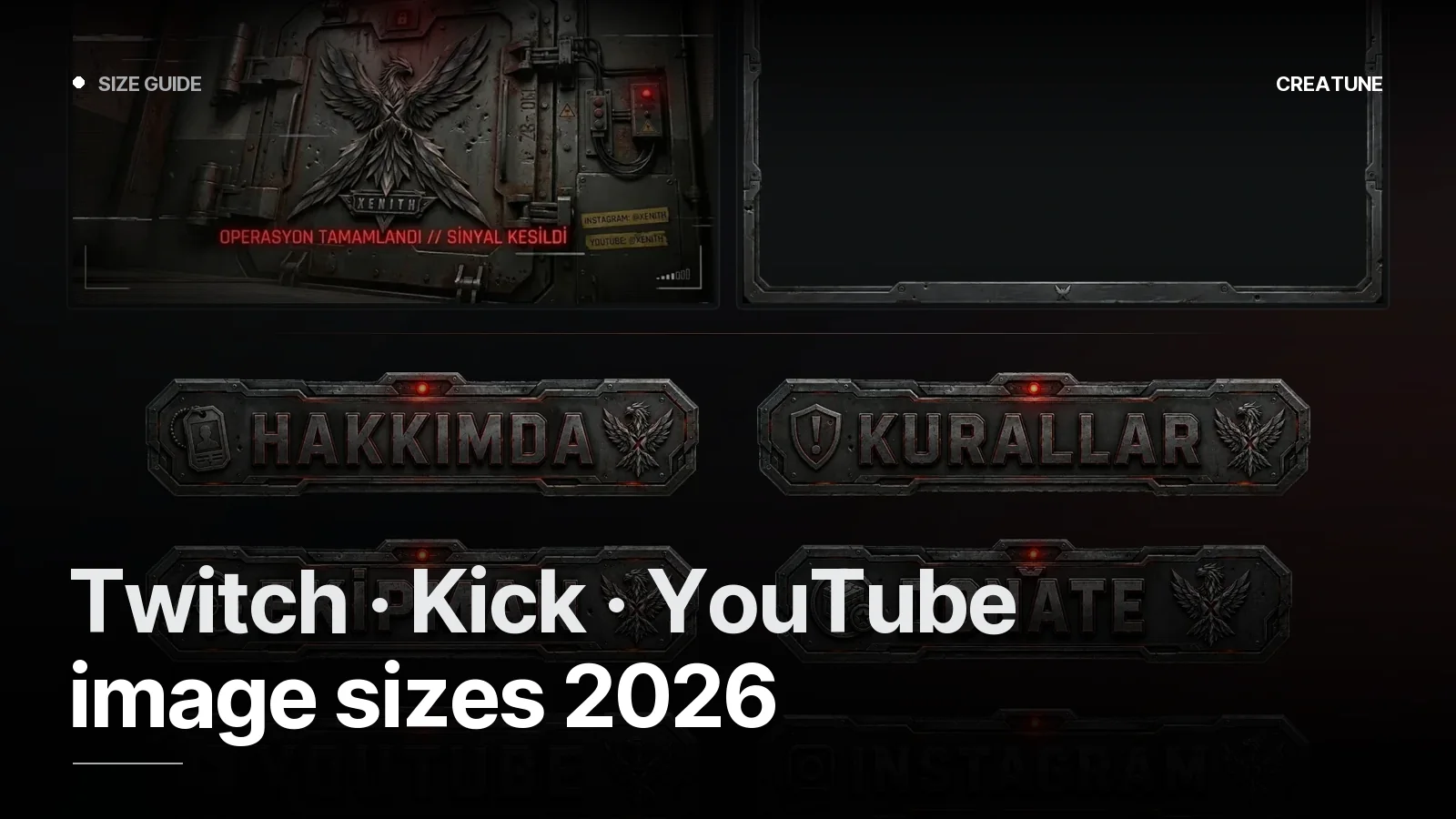
Sizes across platforms: Streamer image sizes 2026.
The thumbnail is the shop window
On Twitch, viewers arrive through category pages; on YouTube, mostly through recommendations and the subscriptions feed, where your stream shows with its thumbnail. Instead of designing one per stream, a fixed template where only the game name and episode number change is fast and recognisable. Method: How to make a clickable YouTube thumbnail · For gaming channels: Gaming YouTube thumbnails.
Banner and channel page
The YouTube banner shows in full on TVs but only as a central strip on phones. Put your stream days and times inside that strip. Banner and thumbnails together: YouTube banner and thumbnail system.
Overlay and chat
YouTube chat goes into OBS through the chat pop-out link; chat styling that matches the overlay makes the stream look like one piece. The setup logic is platform-independent: OBS overlay setup.
Horizontal + vertical
YouTube supports vertical live streams, which sit close to the Shorts feed on phones. With vertical output plugins for OBS, the same stream can send a second 9:16 feed. That needs its own vertical overlay: webcam on top, game in the middle, chat and alerts at the bottom. A vertical layout example: TikTok live stream pack.
Shorts from your streams
Because the recording stays on YouTube, the best moments can become vertical shorts. Building the overlay with this in mind (webcam and game on separate layers) makes clipping much easier: Turn long videos into Shorts.
Where to start
For YouTube channels like Singleplayer and Money by Artyk we start the identity from the banner and thumbnails. Overlay, chat and animated screens are in the full sets on our streamer packages page. Want to know what your channel needs first? Try the free Channel Check.
Frequently asked
1.What design does a YouTube live stream need?
A channel banner, profile picture, live stream thumbnail, overlay and webcam frame, chat styling, and Starting Soon and BRB screens. With memberships on, member badges and emojis are added too.
2.What size is a YouTube banner?
Prepare it at 2560×1440 pixels; the safe area visible on every device is roughly the central 1546×423. Keep text and logos inside it.
3.Does a YouTube live stream need a thumbnail?
Yes. Live streams appear in recommendations and the subscriptions feed with a thumbnail, and the recording keeps it after the stream ends. For recurring series, a fixed thumbnail template makes this easy.
4.Can I stream horizontal and vertical at the same time?
With vertical output plugins for OBS you can send a second vertical feed from the same stream. That needs a vertical version of the overlay; shrinking the horizontal design rarely works.